
01-06-2026 - Author: Ralph Boccalini
Claude AI Meets Microsoft 365: A Quick Guide to Integration, Setup, and Use Cases

The enterprise AI landscape is becoming increasingly interconnected. Organizations no longer necessarily have to choose an AI assistant that operates in isolation from their existing productivity environment.
Anthropic now provides an official Microsoft 365 connector for Claude, allowing Claude to work with organizational information held in SharePoint, OneDrive, Outlook, and Microsoft Teams. Depending on the permissions enabled, Claude can search and analyze Microsoft 365 information and can also perform actions such as sending email, managing calendar events, updating SharePoint files, and sending Teams messages.
And the integration story goes further. Claude for M365 also provides Claude-powered add-ins that operate directly inside Excel, PowerPoint, Word, and Outlook.
In other words, there are now two important ways to think about Claude and Microsoft 365:
Microsoft 365 → Claude Bring Microsoft 365 organizational context into Claude through the Microsoft 365 connector.
Claude → Microsoft 365 applications Use Claude directly inside applications such as Word, Excel, PowerPoint and Outlook through Claude for M365.
Let's take a closer look.
What can Claude access in Microsoft 365?
The official Microsoft 365 connector connects Claude with several core Microsoft 365 services.

These capabilities make some compelling scenarios possible.
Instead of manually finding several documents, downloading them and uploading them to an AI assistant, a user could ask Claude to locate relevant information available through Microsoft 365.
These capabilities make some compelling scenarios possible.
Instead of manually finding several documents, downloading them and uploading them to an AI assistant, a user could ask Claude to locate relevant information available through Microsoft 365.
For example "Find the latest strategic planning document in SharePoint."
Or:
"Summarize the email conversations relating to the product launch."
Or: "What has been discussed in Teams about the marketing campaign?"
These are similar to examples provided in Anthropic's Microsoft 365 connector documentation.
But there is another integration: Claude inside Office
One of the more interesting developments is Claude for M365.
Rather than accessing Microsoft 365 information from Claude, these add-ins bring Claude into the Microsoft 365 application the user is already working in.
Currently documented applications include:
Claude for Excel
Claude can work with cells, formulas, formatting, pivot tables and charts directly in Excel.
This makes Claude interesting for scenarios such as working through spreadsheet information or assisting with formulas and workbook content.
Claude for PowerPoint
Claude can read, edit and generate slides while working with the organization's existing templates.
Claude for Word
Claude can help draft, review and redline documents and supports workflows involving tracked changes and comments.
Claude for Outlook
Claude can assist with inbox triage, summarize email threads, draft responses and help find meeting times.
Even more interestingly, Anthropic states that these Microsoft 365 applications can share conversation state, allowing work performed in one application to inform subsequent actions in another.
That starts to shift the conversation from "AI chatbot" toward AI working across the productivity workflow.
How does the Microsoft 365 connector work?
At a high level, the architecture can be understood like this:
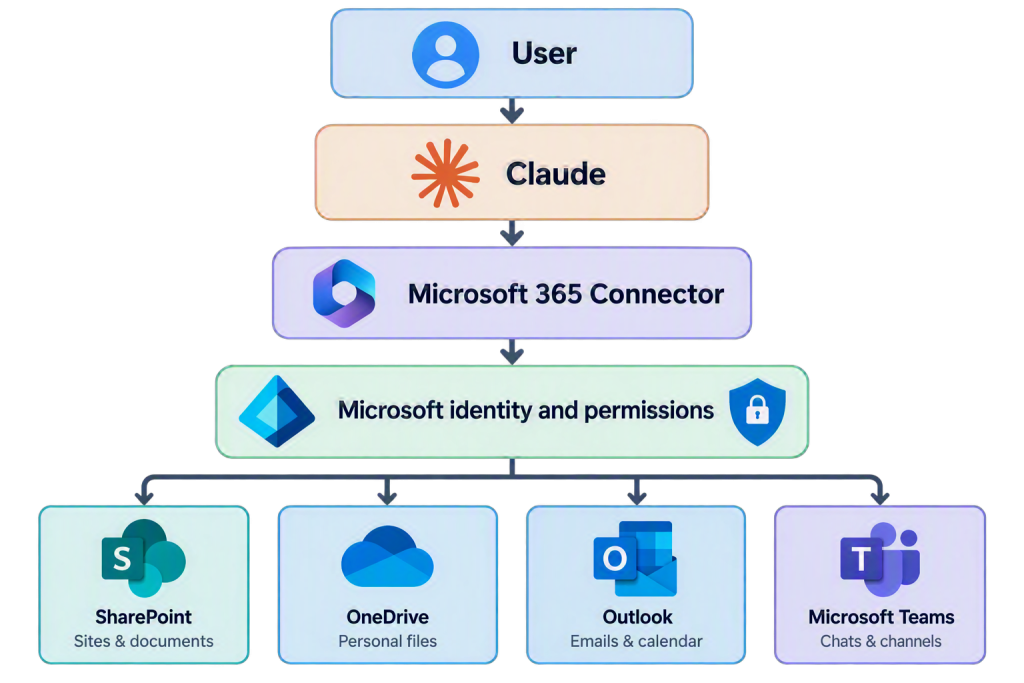
A particularly important point for enterprise customers is identity and authorization.
The standard connector requires a work or school Microsoft account associated with a Microsoft Entra tenant. Personal Microsoft accounts such as Outlook.com, Hotmail.com or Live.com aren't supported.
This therefore isn't simply a case of giving Claude unrestricted access to an organization's Microsoft 365 environment.
Enterprise identity and permissions are an important part of the integration.
Quick implementation guide
For organizations interested in testing Claude with Microsoft 365, the setup can be summarized into two phases.
Step 1: Check the prerequisites
For the standard Microsoft 365 connector, organizations need Microsoft 365 work or school accounts associated with a Microsoft Entra tenant. For Team and Enterprise implementations, Anthropic also documents requirements including active Microsoft 365 accounts and appropriate Claude organization administration.
A Microsoft Global Administrator is required to grant tenant consent for the Microsoft organization.
Step 2: Enable the connector in Claude
For Claude Team and Enterprise, an organization Owner enables the Microsoft 365 connector.
The documented navigation is:
Organization Settings → Connectors → Add → All available → Microsoft 365 → Add to your team
The appropriate Microsoft administrator can then grant the required organization-wide Microsoft permissions.
Step 3: Review permissions before deployment
This is perhaps the most important step from a governance perspective.
Before enabling the connector broadly, administrators should review which Microsoft 365 permissions are being requested and determine which capabilities are appropriate for their organization.
Anthropic's documentation specifically mentions that administrators can optionally restrict user access or revoke specific permission scopes.
My recommendation would be to treat this as a formal AI application onboarding exercise rather than simply another end-user plug-in installation.
Review at least:
- Microsoft Entra permissions
- User populations receiving access
- Read versus write requirements
- Sensitive SharePoint and OneDrive information
- Existing Microsoft 365 sharing permissions
- Data protection requirements
- Governance and compliance requirements
These are governance recommendations rather than requirements stated by Anthropic.
Step 4: Users connect Microsoft 365
Once administrators have enabled the integration, users on the Team or Enterprise plan can go to:
Claude → Customize → Connectors → Microsoft 365 → Connect
They then authenticate using their Microsoft 365 credentials.
Claude can subsequently use the Microsoft 365 connector when a user's prompt requires relevant Microsoft 365 information.
Step 5: Start with controlled business scenarios
Rather than immediately enabling every possible scenario, I would recommend starting with a small number of clearly defined use cases.
For example:
Research "Find the documents related to Project X in SharePoint and summarize the key information."
Email "Summarize the recent email discussions concerning Customer X."
Teams "What discussions have taken place in Teams regarding Project X?"
Meetings "Review the available information from the leadership meetings."
Once write capabilities have been appropriately approved, organizations can evaluate action-oriented scenarios such as email, calendar, SharePoint file and Teams messaging workflows. The connector documentation explicitly lists these as supported capabilities.
What about security and governance?
This is where organizations should pause before clicking "Enable."
Connecting another AI platform to Microsoft 365 creates an additional AI access path to enterprise information. That doesn't automatically make the integration unsafe, but it does mean organizations should evaluate the integration through their normal identity, security, compliance and AI governance processes.
One particularly useful principle is:
Don't evaluate only what Claude can do. Evaluate what Claude is permitted to access and what actions users are permitted to perform.
For regulated organizations, or companies already implementing governance around Microsoft 365 Copilot, this distinction is important.
The organization's AI governance strategy should take into account not only Microsoft-native AI capabilities, but also third-party AI applications connecting to Microsoft 365.
Claude + Microsoft 365 doesn't mean Microsoft 365 Copilot disappears
This is perhaps the most important strategic takeaway.
Organizations increasingly won't be asking:
"Should we choose Microsoft Copilot or Claude?"
A more useful question may become:
"Which AI assistants should have access to which enterprise information and for which business scenarios?"
Microsoft 365 can increasingly act as a common enterprise information environment accessed by different AI experiences, while governance determines which identities, applications, permissions and datasets are appropriate.
Claude's Microsoft 365 integration is a strong example of that direction.
My Final thoughts
Claude's Microsoft 365 integration is no longer limited to manually uploading Office documents into an AI chat.
The official connector gives Claude a route into SharePoint, OneDrive, Outlook and Teams, while Claude for M365 brings Claude directly into Excel, Word, PowerPoint and Outlook.
For end users, that can mean less context switching.
For IT departments, it introduces new enterprise AI integration possibilities.
And for security and governance teams, it introduces an equally important question:
As more AI assistants connect to Microsoft 365, how do we govern who and what can access our organizational knowledge?
That may ultimately be the bigger story than the connector itself.